You hit Send, and a second later you spot the typo in the recipient's name, or realise the attachment never made it. Gmail has a built-in way to pull that email back, but only for a short time.
By default you get five seconds. On desktop you can stretch that to 30 seconds, according to Google's own Gmail guidance.
What does Undo Send actually do?
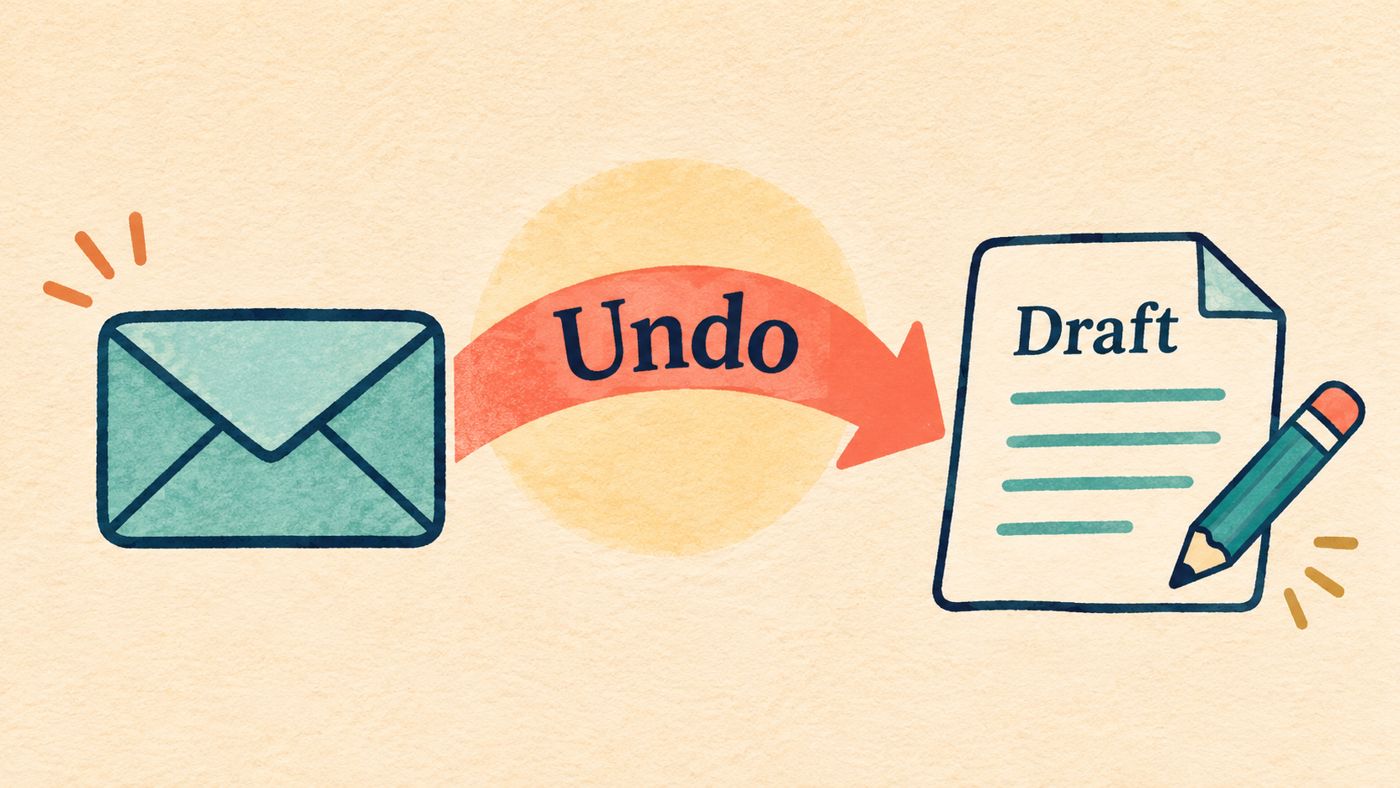
Undo Send doesn't reach into someone's inbox and delete a message. Based on Google's description, it gives you a short window after you press Send in which you can click Undo. Your message then reappears as a draft, ready for editing.
That's why the length of the window matters. Once it closes, the Undo option is gone.
How do you undo a sent email on desktop?
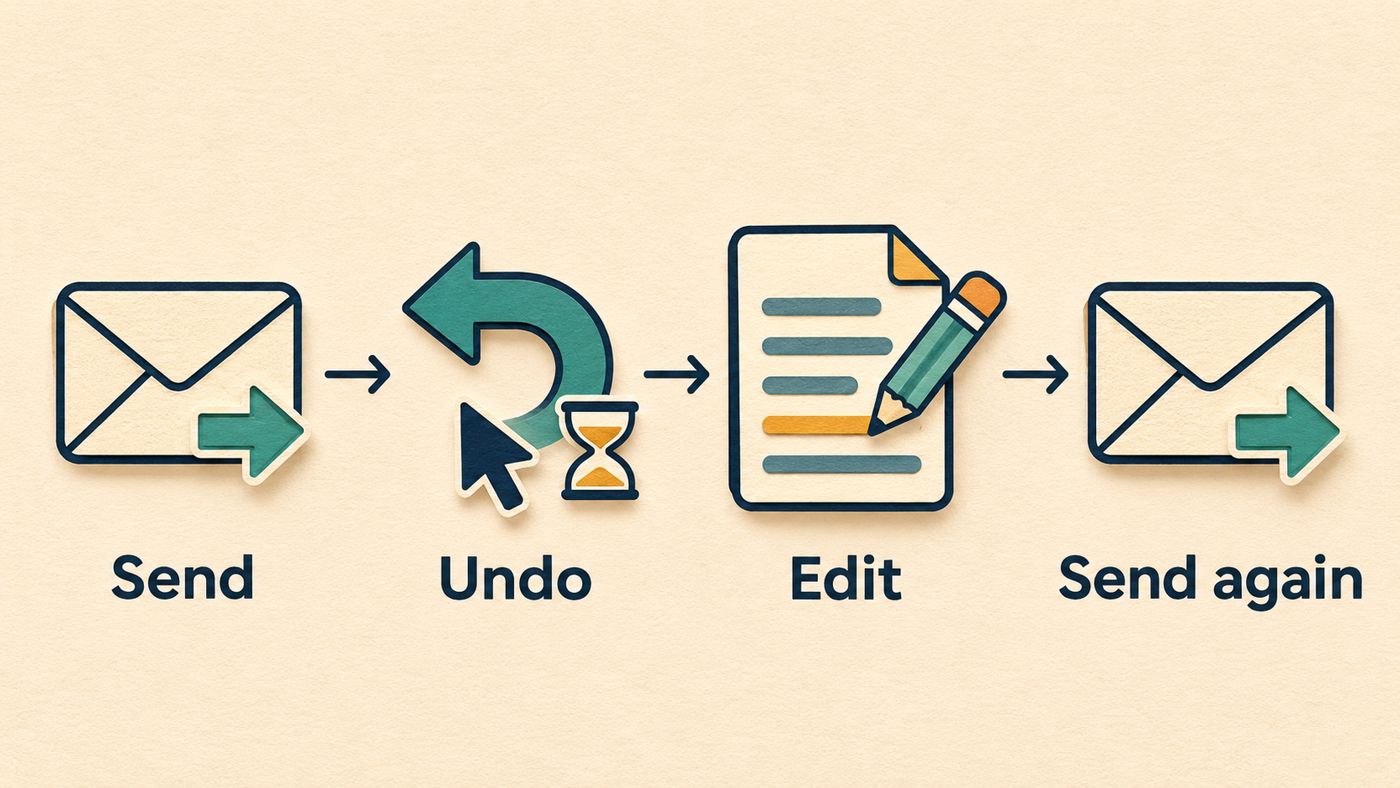
- Write your email and click Send.
- Look at the bottom left of the screen for the Message sent notice.
- Click Undo, to the right of "Message sent".
- Your message reopens as a draft. Make your changes and send it again.
After a successful Undo, the message reopens for editing. The Undo notice is temporary, so click it promptly.
How do you undo send in the Gmail mobile app?
- Tap Send in the Gmail app.
- Look for the notification at the bottom right of the screen that says Undo.
- Tap Undo.
- Your original message comes back so you can edit it.
Google documents the longer cancellation period for Gmail on a computer. The mobile instructions describe tapping Undo immediately after sending; they do not confirm that the desktop timing applies in the app. On a phone, act while Undo is visible.
How do you extend the Undo Send window to 30 seconds?
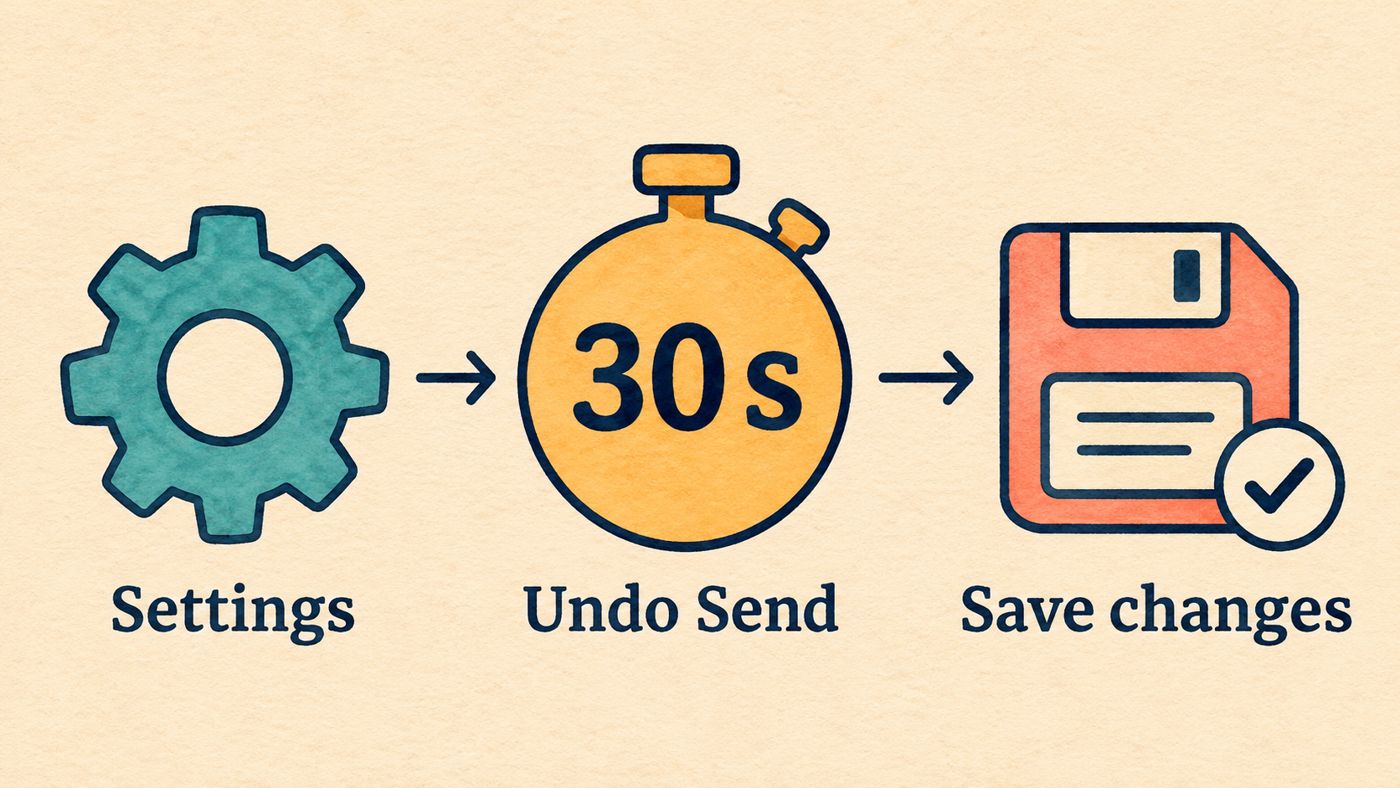
This is the setting most people miss. Do it once from a computer:
- Open Gmail on your desktop.
- Click the Settings icon in the top right.
- Click See all settings.
- Find the Undo Send line, then the Send cancellation period dropdown.
- Choose 5, 10, 20 or 30 seconds.
- Scroll to the bottom of the page and click Save changes.
The last step is easy to forget. If you leave the page without saving, the window stays at its previous length.
Which cancellation period should you pick?
Google lists four options but doesn't recommend one. The trade-off below is my own reasoning, not something from the source.
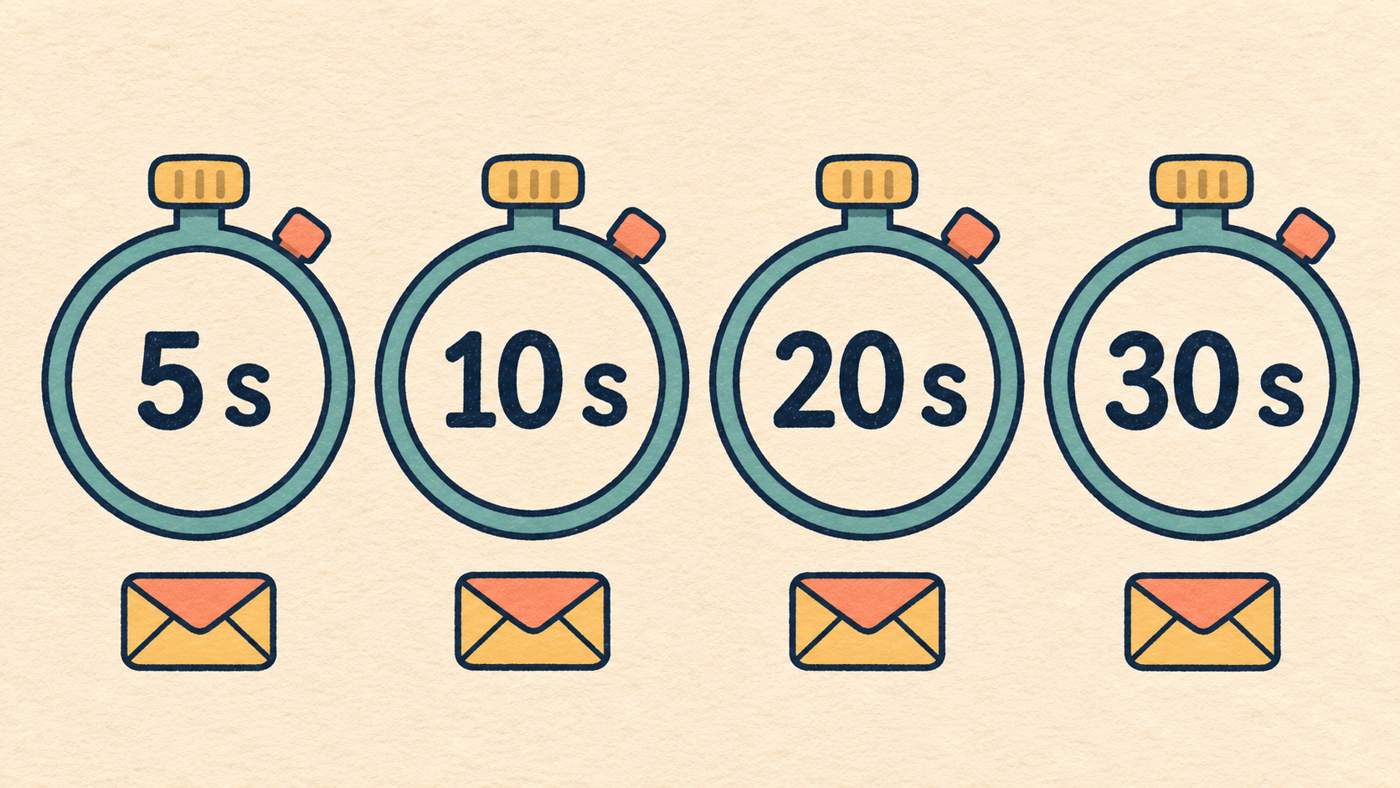
| Setting | Suits you if | Trade-off |
|---|---|---|
| 5 seconds (default) | You rarely regret a send | Very little time to react |
| 10 seconds | You want a modest buffer | Still a quick reaction needed |
| 20 seconds | You often spot mistakes after sending | Slightly longer wait before delivery |
| 30 seconds | You send important or long emails | Longest wait between pressing Send and the message going out |
The source describes the feature as a window in which you can cancel. It doesn't say how delivery timing works behind the scenes, so I won't claim more than that. If you send time-sensitive messages, test the setting with an email to yourself and see whether the pause suits you.
What mistakes does Undo Send help with?
Google's own examples are ordinary ones: forgetting to attach a file, or misspelling someone's name after hitting Send. It also mentions double-checking the "To" field, which is the check people most often skip.
A practical routine is to glance at three things as soon as the Message sent notice appears: the recipient, the attachment and the subject line. If any is wrong, click Undo straight away.
Limits worth knowing
- The maximum window in Google's guide is 30 seconds.
- Extending the window is described as a desktop setting.
- The source doesn't cover UK-specific differences, so none are claimed here. Gmail menus may change over time, so if a label looks different, check Gmail's Help pages.
If you do only one thing, open Settings > See all settings, set Send cancellation period to 30 seconds and click Save changes. It takes under a minute and gives you six times the default safety margin.
 Economy & Finance