You hit Send, and a half-second later you spot the typo in your boss's name or the missing attachment. Gmail's built-in Undo Send can save you, but only if the window is long enough to catch the mistake.
The short answer: Gmail gives you five seconds by default, and on desktop you can change that to 5, 10, 20 or 30 seconds, according to Google's Gmail tip on undoing a send. If you often notice errors a moment too late, 30 seconds is the most forgiving choice.
How do you undo a sent email in Gmail?
The method differs slightly between the app and a desktop browser, and both depend on acting right after you send.
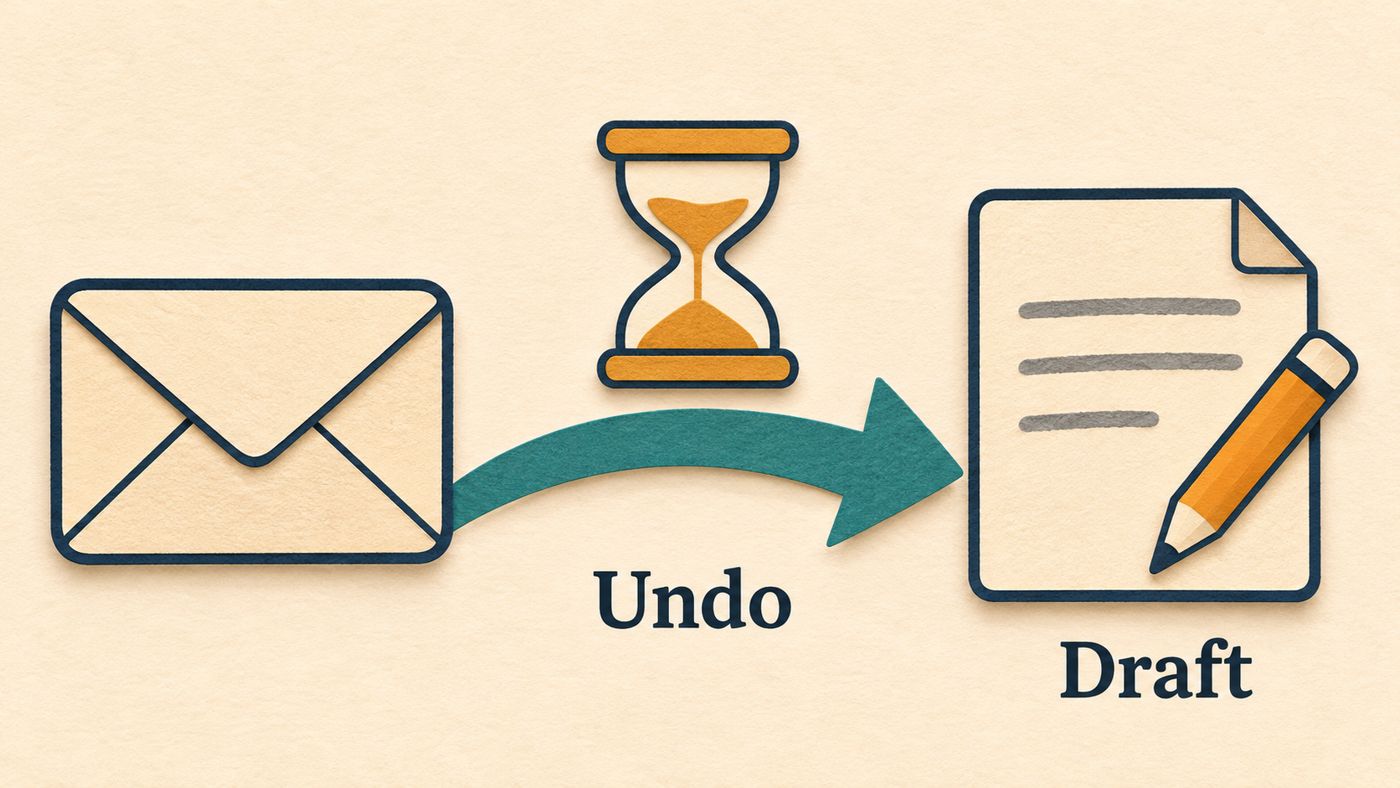
On desktop:
- Click Send.
- Look for the "Message sent" notice at the bottom left of the screen.
- Click "Undo" to the right of it.
Your message reopens as a draft, so you can fix it and send again.
On mobile:
- Tap Send in the Gmail app.
- Look for the notification at the bottom right that says "Undo."
- Tap "Undo."
Your original message comes back for editing.
How do you change the cancellation window?
Google describes the change as a desktop setting. Here's the path from the same source:
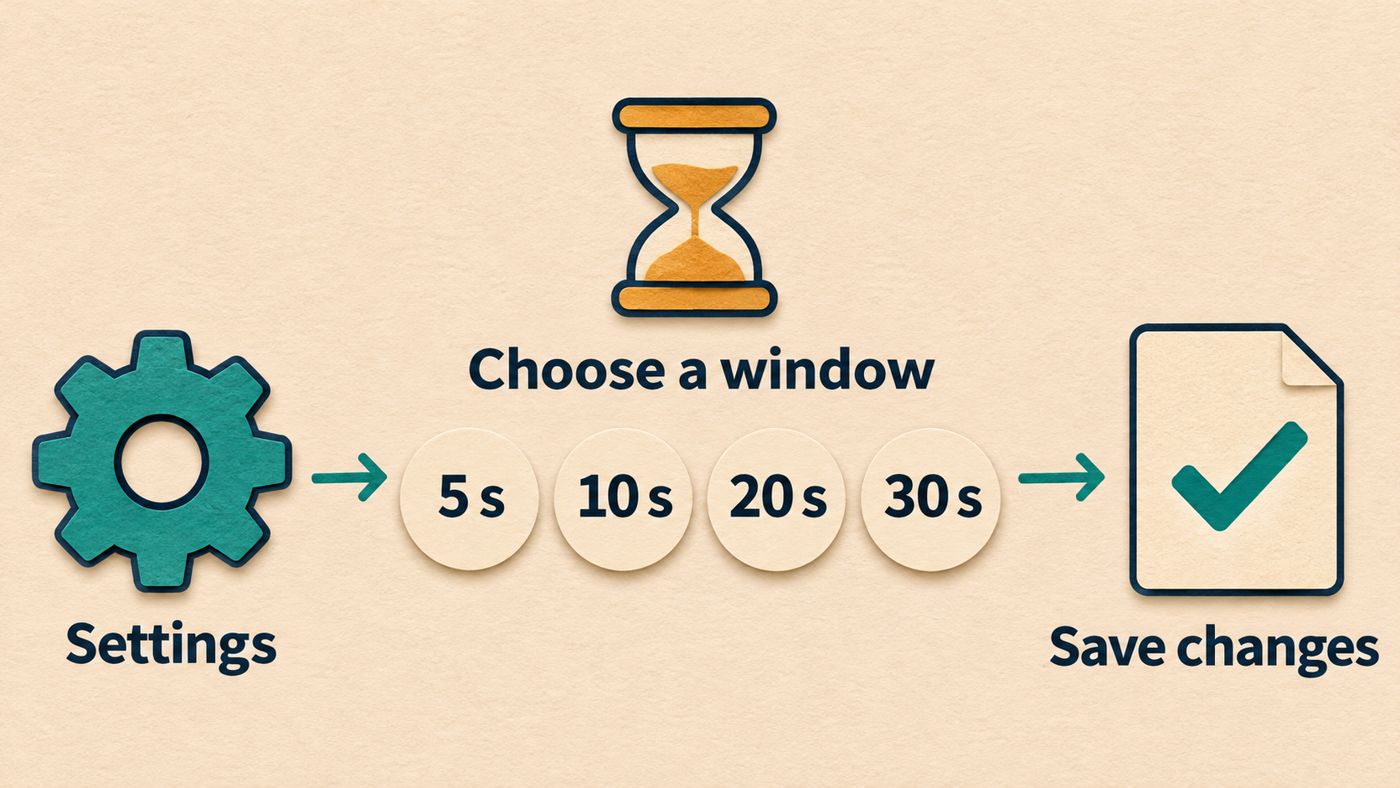
- Open Gmail on your desktop.
- In the top right, click the "Settings" icon.
- Click "See all settings."
- Find the "Undo Send" line, labeled "Send cancellation period."
- Open the dropdown and choose 5, 10, 20 or 30 seconds.
- Scroll to the bottom of the page and click "Save changes."
The last step is easy to miss. If you leave the settings page without saving, the old window stays in place.
To check that it worked, reopen "See all settings" and confirm the dropdown shows your new number. Then send a test message to yourself and watch how long the "Undo" link stays visible.
Which window should you choose?
Google lists the four options but doesn't say which one suits whom. The rule of thumb below is my own judgment, so adjust it to your habits.
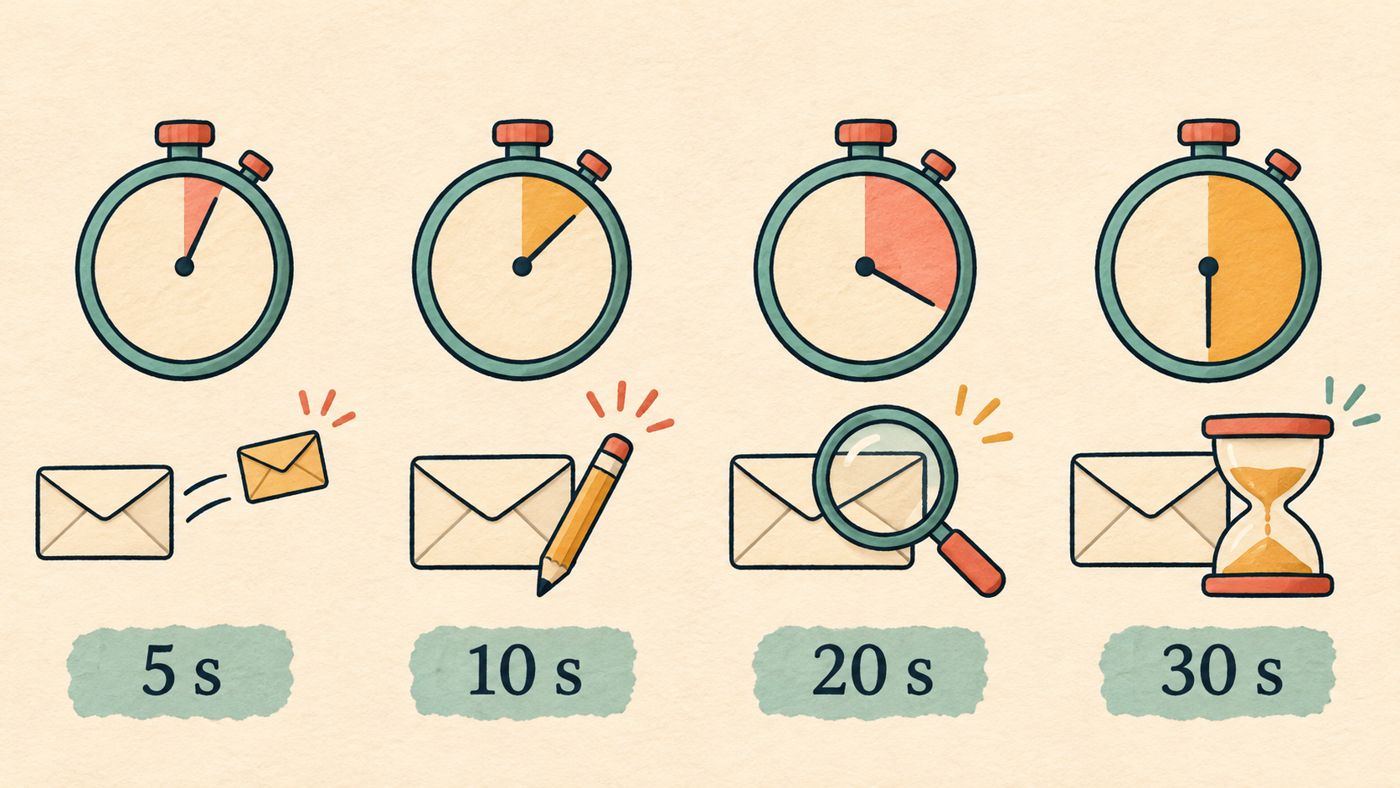
| Window | Might suit you if... |
|---|---|
| 5 seconds (default) | You rarely send anything you'd regret and want messages to leave quickly. |
| 10 seconds | You occasionally catch a typo or a wrong recipient just after sending. |
| 20 seconds | You often send longer or more important messages and reread them afterward. |
| 30 seconds | You'd rather have the most time to react, and a short delay on every send doesn't bother you. |
The question to ask yourself is when you usually notice mistakes. If you often spot a missing attachment or a misspelled name a few moments after sending, the default may be too tight.
What are the limits to keep in mind?
Undo Send only works while the notice is on screen. Once it disappears, the source gives no other way to pull the message back, so don't treat a longer window as a substitute for checking the "To" field before you send.
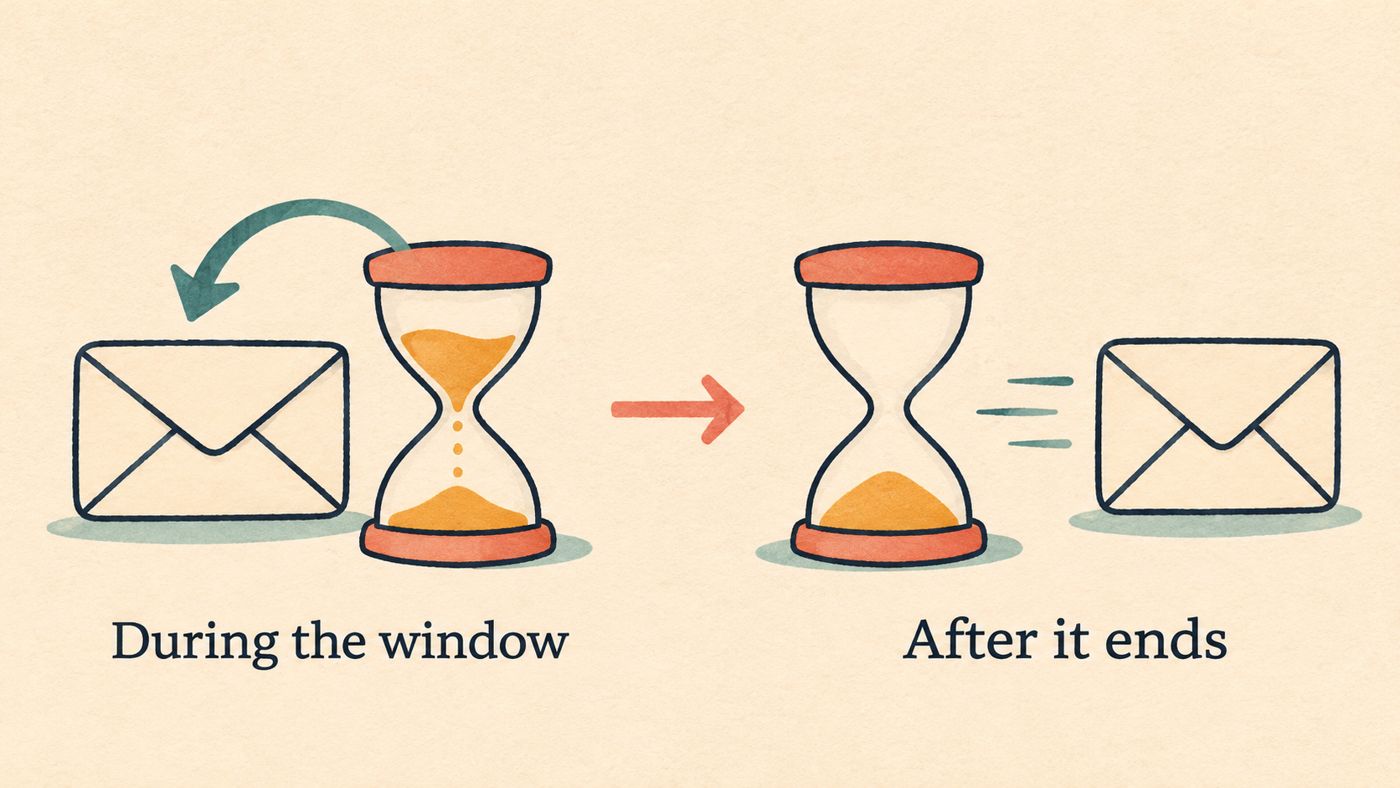
The source also describes the longer window as a desktop settings change. It doesn't say whether the app follows the same setting, so test it on your phone if that's where you do most of your email.
Google published this tip on Feb. 7, 2023. Menu labels can change, so if "See all settings" or "Send cancellation period" looks different on your screen, search the Settings page for "Undo Send."
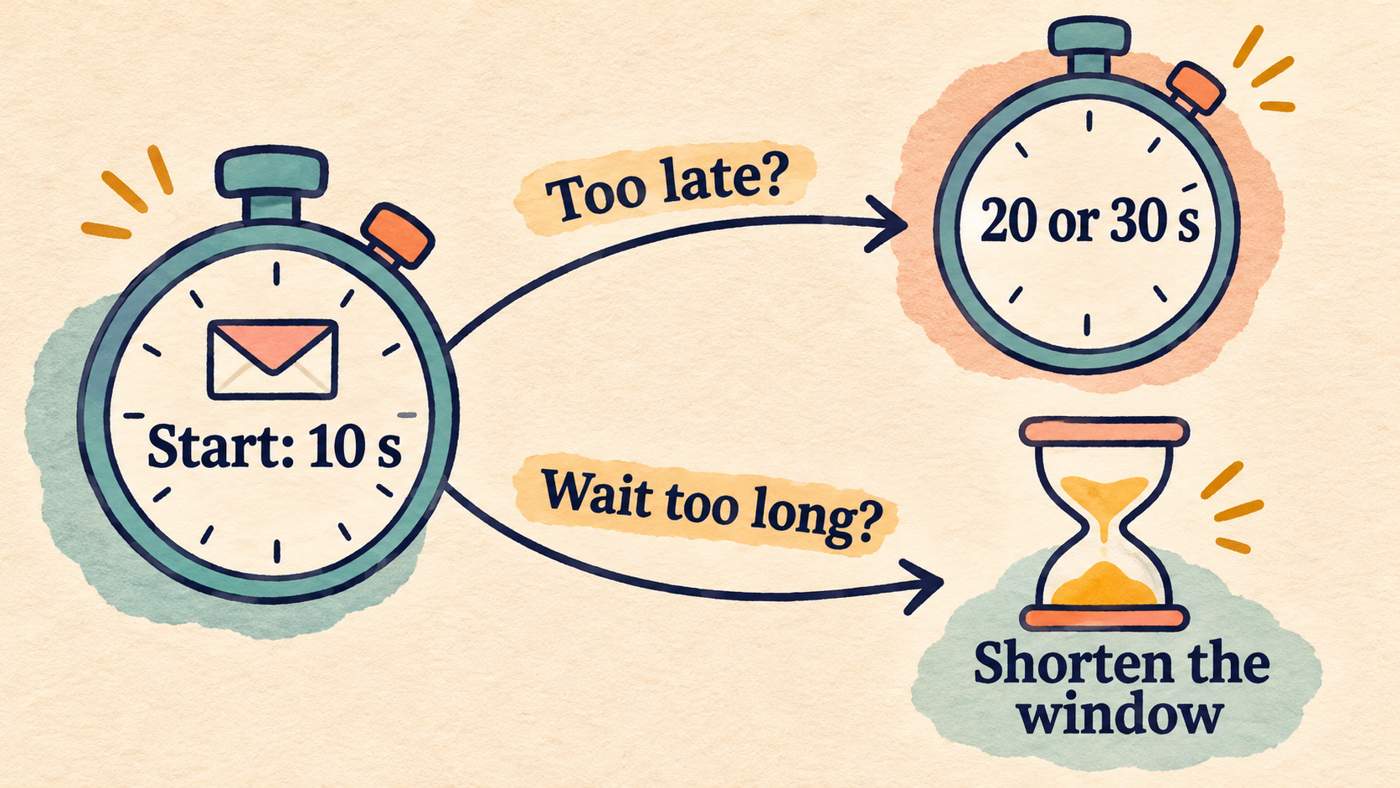
A quick way to decide
Start with 10 seconds if you're unsure. If you still find yourself clicking too late, move to 20 or 30. If the pause bothers you, drop it back down.
 Technology